
Wi-Fi Works in One Room Only – Causes & Fixes
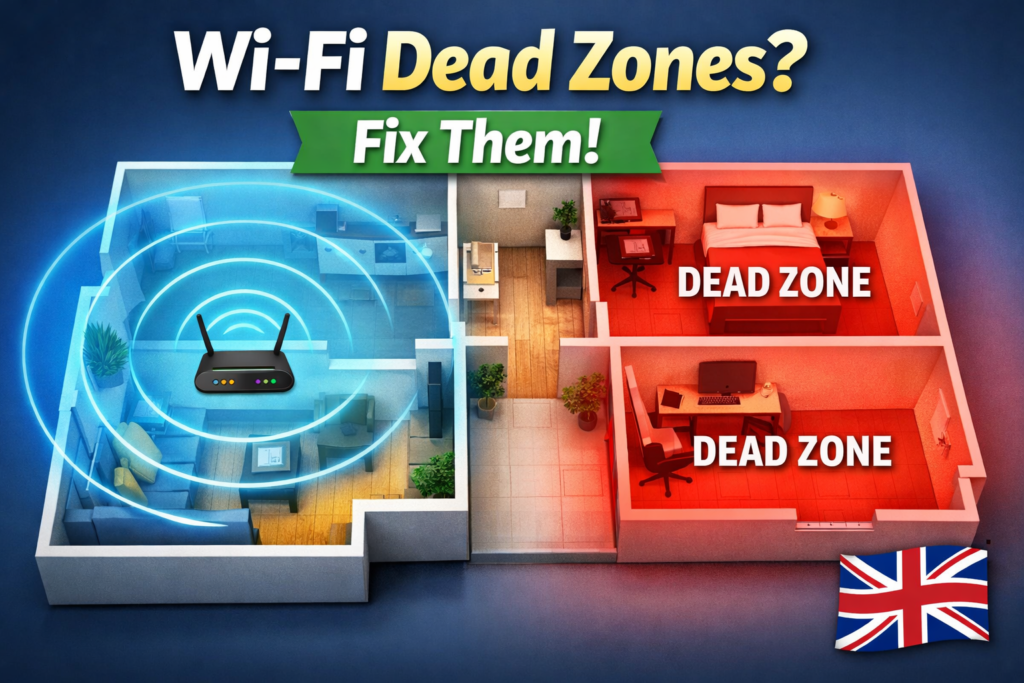
If you’ve ever noticed your Wi-Fi stops working in certain rooms while it works fine in the living room, you’re not alone. Many UK homes — especially flats, shared houses, or older buildings with thick walls — face this issue, often called “Wi-Fi works in one room only.” It’s frustrating when streaming, working, or on a call, but understanding why it happens and how to fix it can keep your devices connected throughout your home.
The good news? Most of these problems have simple fixes, and you don’t always need to spend hundreds of pounds on new equipment. In this blog, we’ll cover the main reasons Wi-Fi works in one room only, step-by-step solutions, and tips to get consistent internet coverage throughout your home.
Common Reasons Your Wi-Fi Works in One Room Only
Router Placement Issues
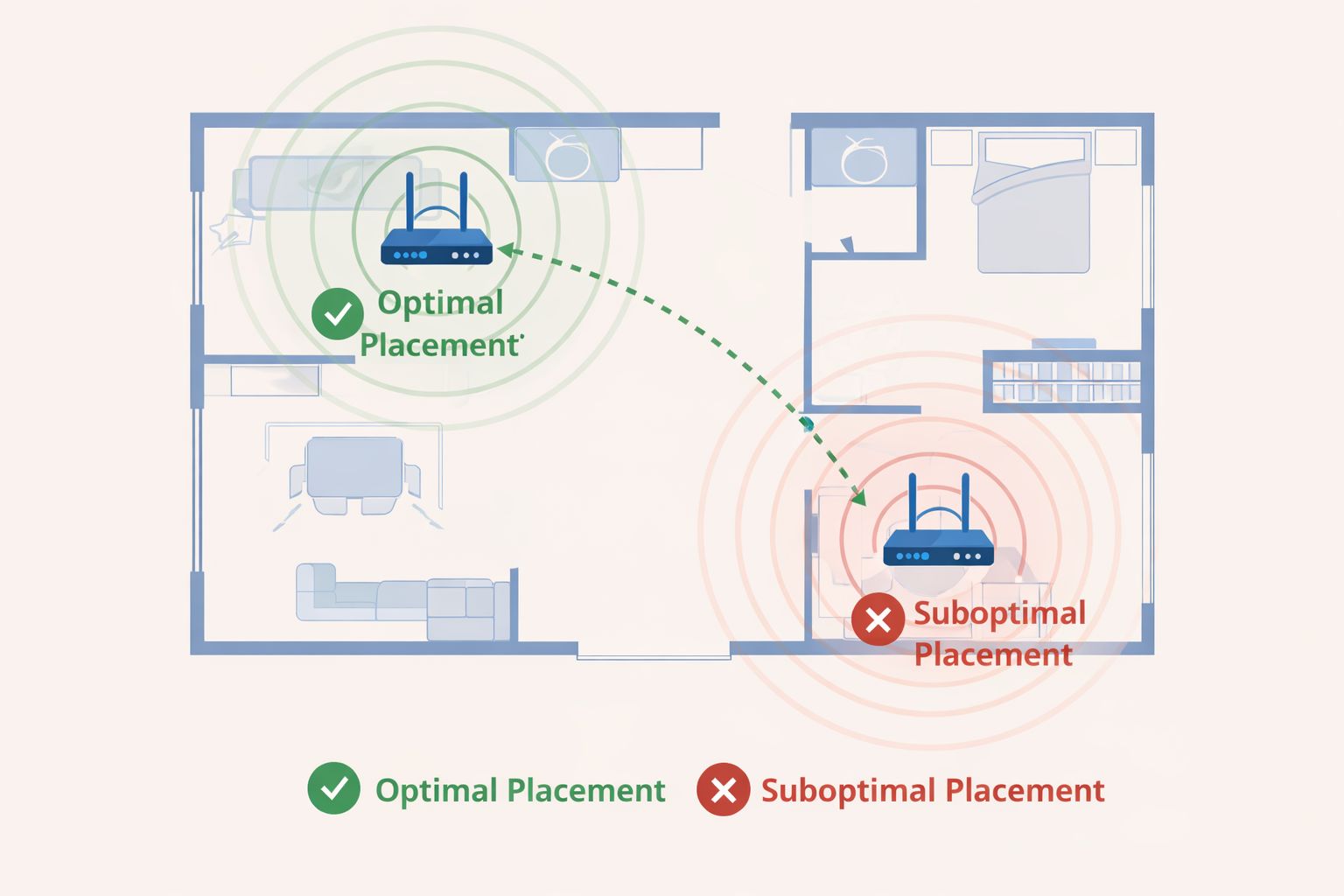
Where your router is placed plays a major role in Wi-Fi coverage. Many people tuck it behind furniture, inside cupboards, or next to the TV, thinking it’s out of the way. Unfortunately, this can block the signal, leaving you with the frustrating problem where “Wi-Fi works in one room only.” Placing your router in a central, open spot can help ensure a strong connection throughout your home.
Tip: Place your router in a central, open location, such as a hallway or living room, away from metal objects, microwaves, and thick walls. This simple adjustment can make a noticeable difference in rooms far from the router.
Signal Interference from Walls & Devices
Older UK homes, especially those built in the 1960s and 70s, often have solid brick or concrete walls that weaken Wi-Fi signals. Even modern flats can have walls that reduce coverage, particularly between floors. If thick walls are causing Wi-Fi problems, our guide on Thick Walls Blocking Wi-Fi Signal – How to Improve Coverage explains practical fixes for UK homes.
Electronics like cordless phones, microwaves, and baby monitors can also interfere with the Wi-Fi signal. Moving the router slightly or changing the channel on your router can sometimes resolve this.
Outdated Router Firmware
Routers, just like your phone or laptop, need regular updates. Firmware updates often improve Wi-Fi performance, fix security issues, and optimise coverage. If your router hasn’t been updated in a year or more, it may struggle to provide consistent coverage.
How to check: Log into your router’s admin panel and look for a firmware update option. Manufacturers like TP-Link, Netgear, and Asus release updates regularly.
Step-by-Step Solutions to Improve Wi-Fi Coverage
Optimal Router Placement Tips
- Place the router in a central, elevated location.
- Avoid cupboards or behind large furniture.
- Keep at least 30–50cm from walls or metal objects.
- Position antennas (if any) vertically for better floor coverage.
Using Wi-Fi Extenders or Mesh Systems
If your home has multiple floors, thick walls, or long corridors, a single router might not be enough. Wi-Fi extenders or mesh systems can spread the signal to dead zones.
Check our Wi-Fi Extender guide for recommended extenders in UK homes. You can also refer to Which? Wi-Fi extender guide for expert comparisons.
Tip: Mesh Wi-Fi systems like TP-Link Deco or Google Nest Wi-Fi often provide better coverage than single extenders in larger flats.
Adjusting Wi-Fi Settings (5GHz vs 2.4GHz)
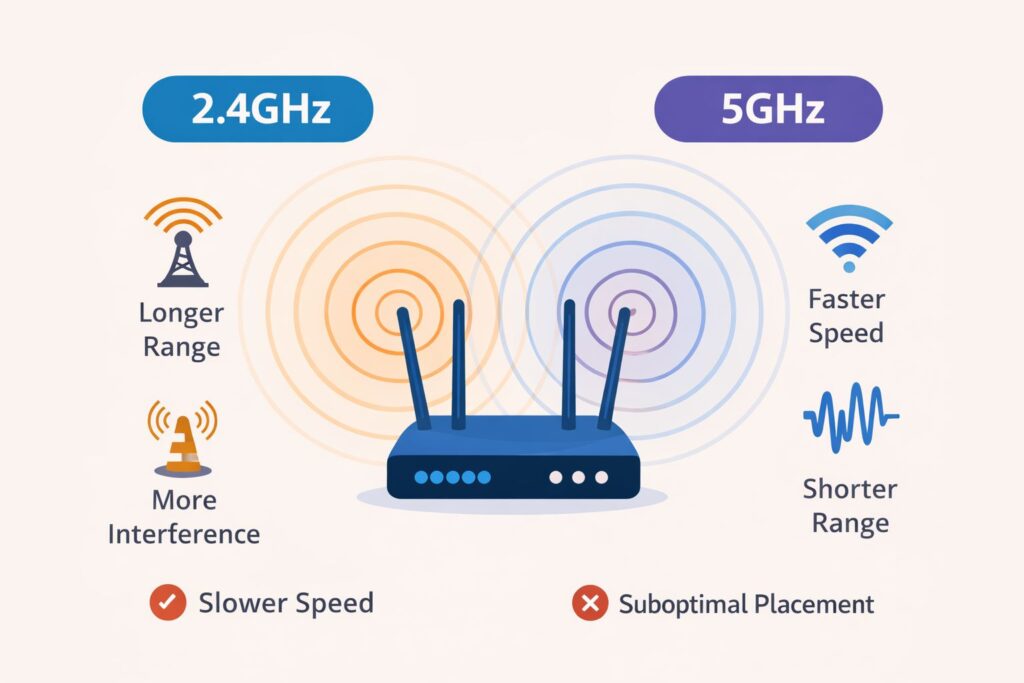
Many routers allow you to choose between 2.4GHz and 5GHz bands.
- 2.4GHz: Longer range, slower speed
- 5GHz: Faster speed, shorter range
Switching to 2.4GHz can help rooms far from the router, while 5GHz works best in nearby areas.
Wondering whether 5GHz is better or worse than 2.4GHz? Check out 5GHz Wi-Fi Worse Than 2.4GHz – Real Reasons Explained.
Reduce Interference
- Keep your router away from other electronics.
- Change Wi-Fi channels in your router settings to avoid overlap with neighbours’ networks (especially in flats).
- Avoid using too many devices on the same network simultaneously.
When to Consider Upgrading Your Router
Sometimes, older routers simply can’t handle modern Wi-Fi needs. Signs you might need an upgrade:
- Frequent dropouts, especially in multiple rooms
- Slow speeds even near the router
- Multiple devices struggling simultaneously
- No firmware updates available
Bought a new router but it didn’t solve coverage issues? Read New Router but Same Wi-Fi Problems – What to Do for troubleshooting tips.
See Our Wi-Fi Router guide for models suitable for UK homes in 2026.
Common Mistakes That Kill Wi-Fi Coverage
- Placing the router in a cupboard or under a desk
- Ignoring firmware updates
- Using only 5GHz in a large or multi-storey home
- Overcrowding the network with too many devices
Fixing these mistakes can often restore coverage without extra hardware.
FAQ – Wi-Fi Dead Zones
Q1: Why does Wi-Fi only work in one room?
A: Usually due to router placement, wall interference, or outdated firmware.
Q2: Can a Wi-Fi extender fix all dead zones?
A: Extenders help, but mesh systems often work better for multiple floors or thick walls.
Q3: Should I buy a new router or just move my old one?
A: Try moving the router and updating firmware first. Upgrade only if problems persist.
Tips
- Test Wi-Fi in different rooms after making changes.
- Avoid placing routers in enclosed cabinets.
- Regularly check for firmware updates.
- If needed, invest in a budget-friendly Wi-Fi extender for dead zones.
Even small adjustments can make a big difference, and often you don’t need to spend more than £30–£50 to get full coverage in your home.
Conclusion
Wi-Fi that only works in one room is frustrating, but the solution is usually simple. By adjusting your router placement, using extenders or mesh systems, updating firmware, and optimising settings, you can enjoy strong Wi-Fi throughout your home.
For more tips and product recommendations, check out our Wi-Fi Router guide and Wi-Fi Extender guide to get the best coverage in your UK home.
Enjoyed our Wi-Fi guides? Share your experience on Trustpilot — we’d love to hear from you!
Pingback: 5 Reasons Strong Wi-Fi Signal but Internet Is Slow
Pingback: 5 Shocking Reasons Wi-Fi Slow on Phone but Fast on Laptop
Pingback: Internet Drops at Night? 7 Shocking Reasons & How to Fix It
Pingback: 5GHz Wi-Fi Worse Than 2.4GHz? Practical Reasons Explained
Pingback: Thick Walls Blocking Wi-Fi Signal? 11 Proven Ways to Improve
Pingback: New Router but Same Wi-Fi Problems? 7 Quick Fixes
Pingback: 7 Best Budget Wi-Fi Extenders UK (2026) – Affordable Wi-Fi Boosters
Pingback: TV & Streaming Problems in UK Homes: 7 Proven Fixes
Pingback: TV Buffering on WiFi UK: 6 Proven Fixes That Actually Work