
Strong Wi-Fi Signal but Internet Is Slow – Explained
It’s a scenario many UK households know all too well: your device shows a strong Wi-Fi signal but internet is slow. Web pages take ages to load, videos buffer constantly, and online games lag. It’s confusing — your connection looks perfect, but your actual speed tells a different story.
If you’ve ever noticed Wi-Fi working in only one room, check out our guide on Wi-Fi dead zones for solutions that complement these speed fixes.
Sometimes full bars don’t mean a stable connection. See Full Wi-Fi Bars but No Internet – Reasons & Solutions for a step-by-step guide.
Even with a strong Wi-Fi signal, internet speed problems can occur due to several factors. In this blog, we’ll explain why your strong Wi-Fi signal but internet is slow, and provide practical solutions to fix it for UK homes.
Why Strong Wi-Fi Doesn’t Always Mean Fast Internet
ISP Speed Limitations
One of the most common causes of a strong Wi-Fi signal but internet is slow is the speed provided by your internet service provider (ISP). You may have a Wi-Fi signal that reaches every corner of your home, but if your broadband plan offers only 30–50 Mbps, multiple devices streaming videos, making video calls, or downloading files can saturate your connection.
Even advertised “fast” plans may experience speed drops during peak hours. In London flats, for instance, residents often notice slow speeds in the evening when several people in the building are online simultaneously.
Tip: Use Ofcom’s broadband checker to see your actual internet speed and compare it to your plan. This will tell you if the problem is your ISP or something within your home.
Even if your speed test shows high numbers, browsing may still be slow. Learn more in Internet Speed Test Shows Fast but Browsing Is Slow – Fixes.
Device Hardware or Software Issues
Sometimes the problem isn’t your Wi-Fi or ISP — it’s the device itself. Older laptops, smartphones, or tablets may struggle to process fast internet effectively. Background apps, software updates, or even malware can reduce performance.
Tip: Keep devices updated, close unnecessary apps, and occasionally restart them to refresh the connection. For example, a laptop streaming 4K content while running multiple background applications can slow down browsing, even with full Wi-Fi bars.
Router Overload
Modern UK homes often have multiple Wi-Fi-connected devices: laptops, phones, smart TVs, gaming consoles, and IoT gadgets like smart speakers and thermostats. If too many devices are active at the same time, your router may struggle to allocate bandwidth effectively, leading to slow internet even with a strong signal.
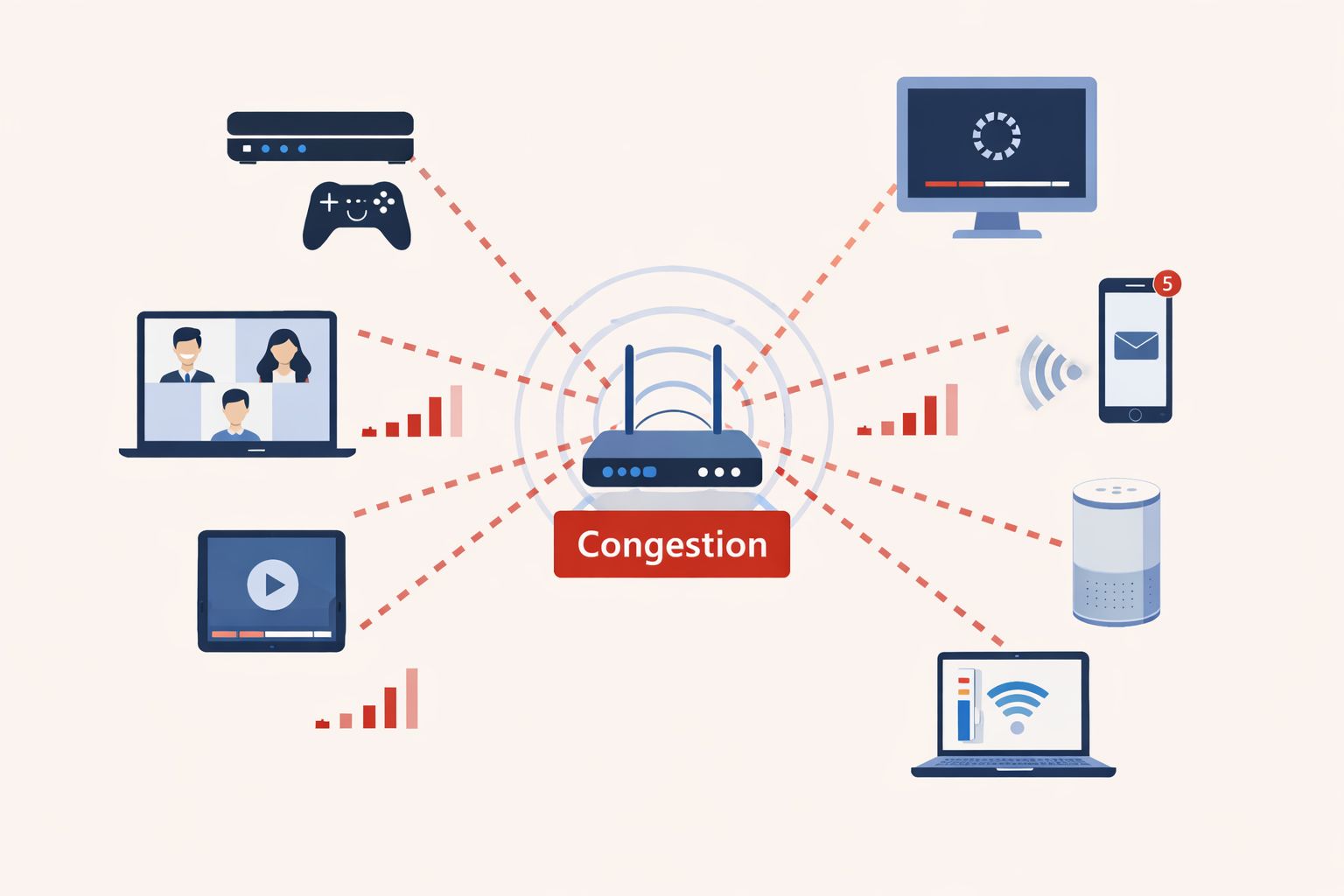
A strong signal doesn’t guarantee high-speed internet if the router cannot handle multiple simultaneous connections. This is especially true in shared flats or multi-device households.
For more tips on extending coverage and fixing weak signals in specific rooms, see our Wi-Fi Works in One Room Only – Causes & Fixes blog
Bandwidth-Hogging Apps
Streaming 4K videos, online gaming, cloud backups, and video calls consume large amounts of bandwidth. Even if your Wi-Fi signal is strong, other devices or apps using the network heavily can slow your browsing.
Tip: Schedule large downloads or backups for off-peak hours and enable Quality of Service (QoS) on your router to prioritise important devices, such as your work laptop or smart TV.
Interference & Poor Router Settings
Interference can come from neighbouring Wi-Fi networks, household electronics like microwaves and cordless phones, or physical obstacles such as thick walls and floors.
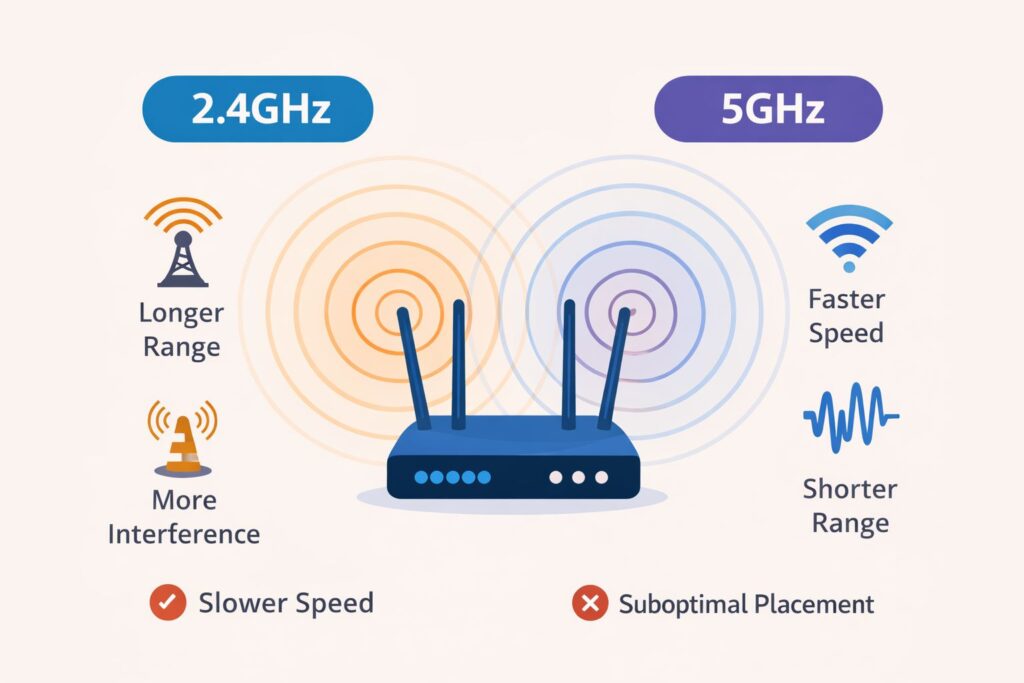
Routers using only the 5GHz band may also struggle to reach distant rooms. Switching between 2.4GHz and 5GHz depending on device location can improve performance.
Step-by-Step Solutions to Fix Strong Wi-Fi but Slow Internet
Test Your Internet Speed
Start by testing your real-world speed using Speedtest.net. Compare it to your plan’s advertised speed. Consistently low speeds may indicate ISP issues, whereas fluctuating speeds could point to device or network congestion.
Restart Router and Devices
A simple restart often solves temporary speed drops. Turn off your router for 30 seconds, then power it back on. Restart your smartphone, tablet, or laptop to refresh the connection. Many temporary Wi-Fi glitches are resolved by this simple step.
Reduce Device Load
Limit the number of devices actively using your network simultaneously. For households with multiple users, stagger streaming, gaming, and large downloads to reduce congestion.
For example, avoid streaming 4K videos on multiple devices at the same time if your broadband plan has limited speed.
Optimise Router Settings
- Use Quality of Service (QoS) settings to prioritise important devices.
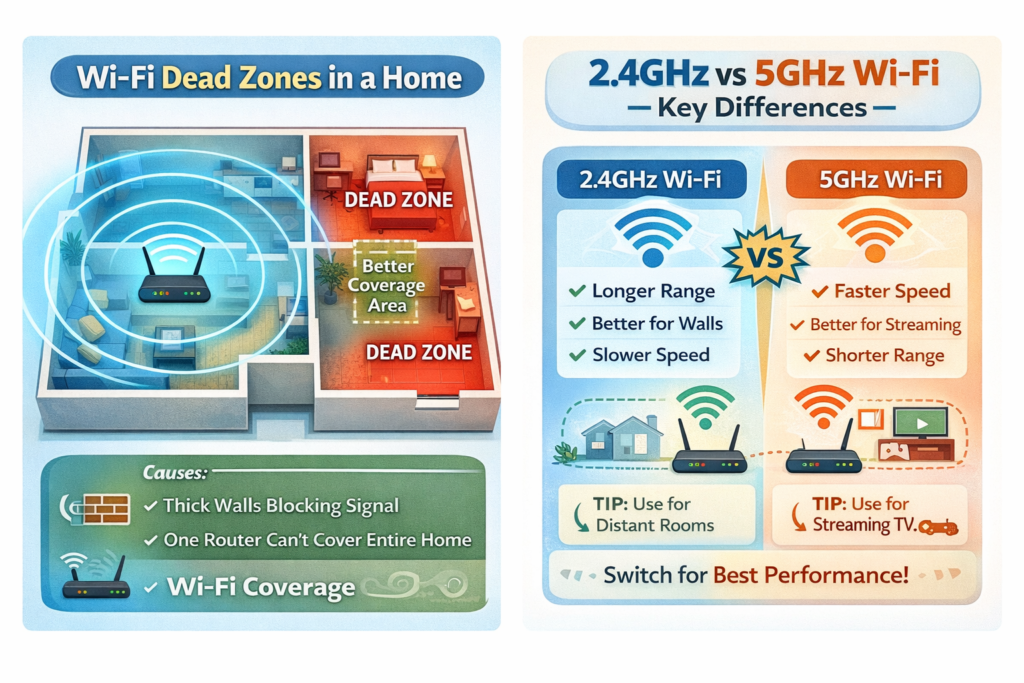
- Choose the correct Wi-Fi band for the task:
- 2.4GHz for long range
- 5GHz for high-speed nearby connections
Update Firmware and Hardware
Ensure your router firmware is up to date. Firmware updates improve performance, fix bugs, and optimise connectivity.
If your router is more than five years old, consider upgrading to a modern model capable of handling multiple devices efficiently. For households with thick walls or multiple floors, mesh Wi-Fi systems provide a more reliable solution.
Check our Wi-Fi Router guide for recommended models in UK homes. Use a Wi-Fi Extender to boost coverage in larger flats or multi-storey homes.
Tips for Faster Wi-Fi
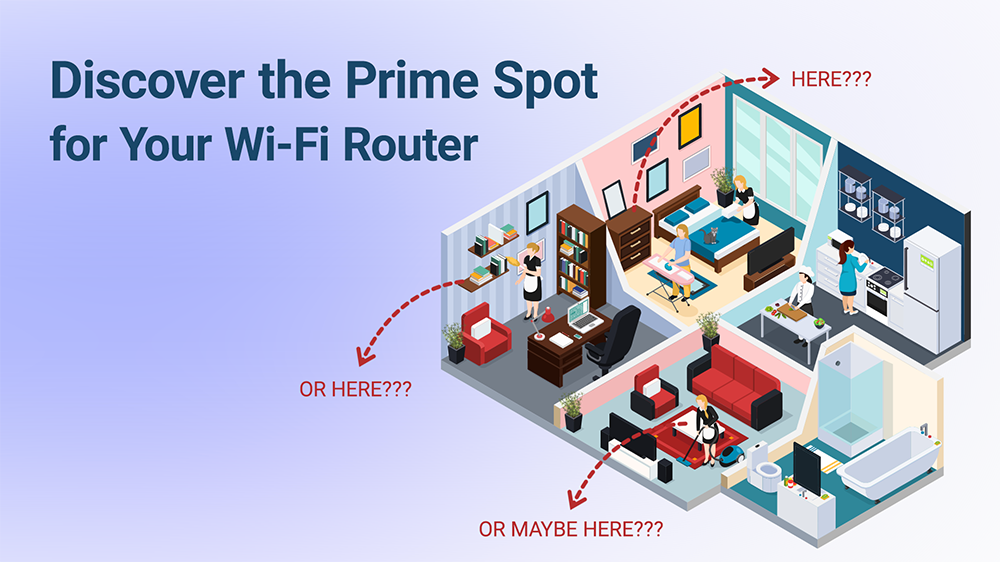
- Place your router in a central, elevated location
- Avoid placing it near metal objects or behind furniture
- Reduce interference from electronics such as microwaves or cordless phones
- Connect bandwidth-heavy devices directly via Ethernet when possible
- Limit background apps or automatic updates on connected devices
- (Image suggestion: Wi-Fi coverage tips or router placement illustration)
Why Wi-Fi Bars Can Be Misleading
Many users assume full Wi-Fi bars mean fast internet. In reality, the bars only indicate signal strength — not speed. Your device may receive a strong signal from the router, but slow internet can still occur due to ISP limits, congestion, or device issues. Understanding this difference helps diagnose problems more effectively.
Night-time internet drops can also cause slowness. Read Internet Drops at Night – Causes & How to Fix for UK-specific tips
Common Mistakes That Make Fast Wi-Fi Feel Slow
- Placing the router in a cupboard or behind furniture
- Using only the 5GHz band for distant devices
- Overcrowding the network with too many devices simultaneously
- Ignoring firmware updates
- Not optimising device or app usage
Correcting these mistakes can often solve strong Wi-Fi signal but internet is slow issues without buying new equipment.
FAQ – Strong Wi-Fi Signal but Internet Is Slow
Q1: Why is my Wi-Fi showing full bars but still slow?
A: Signal strength only indicates connectivity, not actual internet speed. Multiple devices, ISP limits, or router settings often cause slow browsing.
Q2: Can upgrading my router fix the issue?
A: Often yes, especially if your current router is old or doesn’t support multiple devices efficiently.
Q3: Will using a Wi-Fi extender help?
A: Extenders help if the device is far from the router or walls interfere with signals. For multiple floors or large flats, a mesh system may be better.
Q4: How can I prioritise certain devices for faster speeds?
A: Enable Quality of Service (QoS) in your router settings to give priority to devices like laptops or smart TVs.
Conclusion
A strong Wi-Fi signal but internet is slow can be frustrating, but most problems have practical solutions. By testing speeds, reducing device load, adjusting router settings, updating firmware, and using extenders or mesh systems, you can enjoy reliable internet throughout your home.
Alongside these speed optimizations, our Wi-Fi dead zones guide can help ensure every room in your UK home gets reliable Wi-Fi coverage.
For more guidance, see our Wi-Fi Router guide and Wi-Fi Extender guide to get consistent speeds throughout your UK home.
Enjoyed our Wi-Fi guides? Share your experience on Trustpilot — we’d love to hear from you!
Pingback: Shared House Wi-Fi Problems UK: 8 Practical Tips & Solutions
Pingback: New Router but Same Wi-Fi Problems? 7 Quick Fixes
Pingback: Internet Drops at Night? 7 Shocking Reasons & How to Fix It
Pingback: 5 Shocking Reasons Wi-Fi Slow on Phone but Fast on Laptop
Pingback: Full Wi-Fi Bars but No Internet? 7 Proven Fixes That Work
Pingback: 7 Best Budget Wi-Fi Routers UK – Affordable Routers for Home & Office