
New Router but Same Wi-Fi Problems – What to Do
Bought a new router but still experiencing slow internet or frequent disconnections? You’re not alone. Many UK households face the frustrating issue of a new router but same Wi-Fi problems, leaving users wondering why their investment didn’t solve anything.
But what if the new router shows the same Wi-Fi problems? Frustrating, right? You’re not alone. Many UK households experience the same issue — a brand-new device, but the Wi-Fi issues persist.
In this comprehensive guide, we’ll explore 7 shocking reasons why your new router doesn’t fix Wi-Fi problems and provide actionable solutions to finally enjoy fast and stable internet. This article is part of our Wi-Fi Troubleshooting Cluster, along with:
- Wi-Fi Slow on Phone but Fast on Laptop
- Wi-Fi Works in One Room Only – Causes & Fixes
- Strong Wi-Fi Signal but Internet Is Slow

Why a New Router Might Not Solve Your Wi-Fi Problems
Even a brand-new router cannot magically solve Wi-Fi issues if underlying problems persist. Many common mistakes, network challenges, and device issues can make it feel like nothing has changed.
Same Router Placement Mistakes
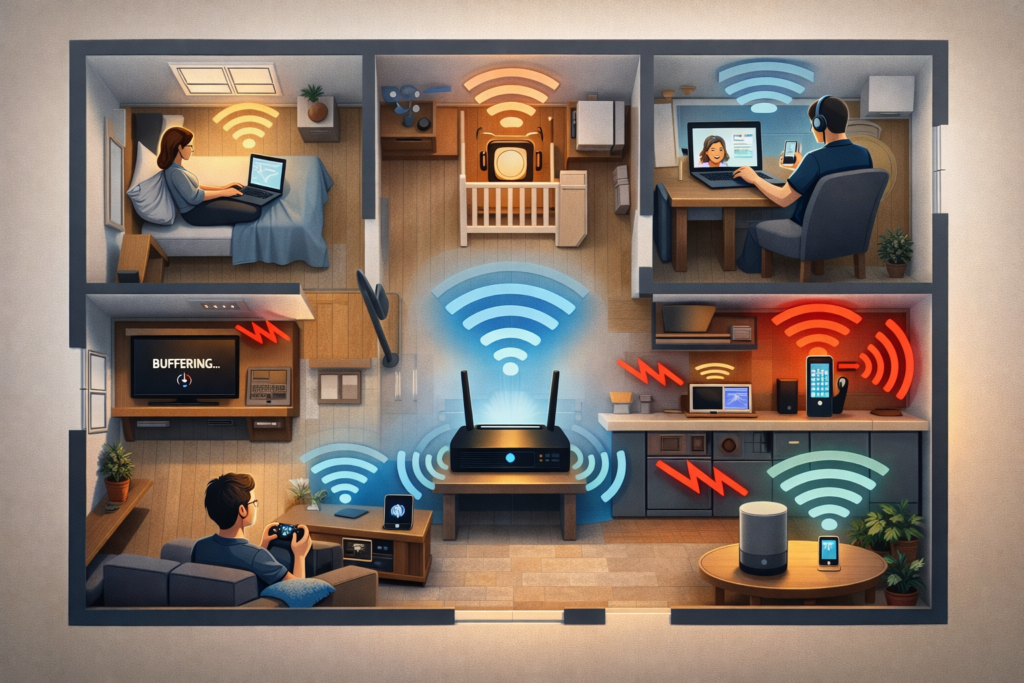
One of the most common reasons people face new router but same Wi-Fi problems is poor placement. Simply swapping your old router for a new one without changing its location won’t fix connectivity issues.
Common mistakes:
- Placing the router in a corner or cupboard
- Keeping it near metal objects or thick walls
- Putting it on the floor instead of elevated
Tips:
- Place your router centrally, elevated, and away from electronics that cause interference.
- Use Wi-Fi Works in One Room Only – Causes & Fixes for guidance on optimal router placement.
Example: Even with a Wi-Fi 6 router, placing it in a cupboard under the stairs can lead to devices in bedrooms or the kitchen constantly losing connection. Thick walls can block signals regardless of your router. Read Thick Walls Blocking Wi-Fi Signal – How to Improve Coverage
Interference from Other Electronics
Electronics like microwaves, cordless phones, and smart home devices can interfere with Wi-Fi signals. A new router does not automatically eliminate interference.
Tip:
- Keep your router away from microwaves, cordless phones, and baby monitors.
- Switch between 2.4GHz and 5GHz bands depending on your room and device.
Example: Streaming Netflix in the living room while your smart fridge or microwave is running can cause a drop in speed — even with a brand-new router.
Same Wi-Fi Settings as Old Router
Sometimes, when setting up a new router, users copy old Wi-Fi settings: same SSID, password, or even channel. This can reproduce the exact same connectivity problems.
Tip:
- Set a fresh SSID and password.
- Scan for the least congested Wi-Fi channels using your router’s admin panel.
- Restart devices to connect to the new network.
For step-by-step router optimisation, see Strong Wi-Fi Signal but Internet Is Slow.
Example: A new Netgear router with the same channel as the old one may interfere with neighbours’ Wi-Fi networks, causing slow speeds and drops.
Device Compatibility Issues
Older devices may not support the latest Wi-Fi standards. Even with a new router, this can result in slow speeds or frequent disconnections — a core reason many face new router but same Wi-Fi problems.
Tip:
- Check if your devices support the router’s Wi-Fi standard.
- Use dual-band routers to allow older devices to connect via 2.4GHz while newer devices use 5GHz.
- Frequency bands matter too — learn why in 5GHz Wi-Fi Worse Than 2.4GHz – Real Reasons Explained.
Network Overload
Even with a new router, too many devices connected simultaneously can overwhelm it, especially in smart homes with multiple TVs, phones, laptops, and IoT devices.
Tip:
- Use Quality of Service (QoS) settings to prioritise essential devices.
- Disconnect unnecessary devices during high-usage hours.
Example: Streaming 4K Netflix, gaming, and running cloud backups simultaneously can still overload a new router without proper QoS settings.

ISP or Broadband Issues
Even the best router cannot fix issues with your broadband provider. If your ISP delivers inconsistent speeds or experiences outages, a new router alone won’t solve it.
Tip:
- Test your internet connection using Speedtest or Ofcom’s broadband checker.
- Contact your ISP if you notice frequent drops or slow speeds.
Example: If speeds drop below your plan’s minimum during peak hours, even a new router won’t fix the issue.
Firmware Not Updated
New routers sometimes ship with outdated firmware. Outdated firmware can cause connection drops, poor speeds, or security vulnerabilities.
Tip:
- Check your router’s admin panel for firmware updates.
- Enable automatic updates if available.
Check our Wi-Fi Router guide for recommended models in UK homes. Use a Wi-Fi Extender to boost coverage in larger flats or multi-storey homes.
Step-by-Step Fixes for a New Router but Same Wi-Fi Problems
Restart Router and Devices
Power cycle your new router and all connected devices to refresh connections.
Check Router Placement
Move it to a central, elevated location away from interference sources.
Change Wi-Fi Settings
Create a new SSID, password, and select the least congested channel.
Enable QoS Settings
Prioritise devices like laptops, gaming consoles, or smart TVs for better performance.
Separate Wi-Fi Bands
Use 2.4GHz for older devices and 5GHz for newer devices closer to the router.
Update Firmware
Ensure the router firmware is current for optimal performance and security.
Check ISP Connection
Test speeds at different times. Contact your provider if issues persist.
Common Mistakes People Make After Getting a New Router
- Placing the new router in the same location as the old one
- Copying old Wi-Fi settings
- Not updating firmware immediately
- Connecting too many devices without QoS
- Ignoring ISP-level issues
FAQ – New Router but Same Wi-Fi Problems
Q1: Why does a new router still have Wi-Fi problems?
A: Often due to placement, interference, old devices, ISP issues, or copied settings.
Q2: Can changing SSID and password help?
A: Yes, it creates a fresh connection and avoids previous network conflicts.
Q3: Should I upgrade all my devices too?
A: Not necessary, but older devices may not take full advantage of new Wi-Fi standards.
Q4: Will mesh Wi-Fi solve these problems?
A: Mesh systems distribute the signal better in larger homes or multi-floor properties.
Q5: Can QoS really improve performance?
A: Yes, it prioritises essential devices during high-traffic periods.
Tips for Stable Wi-Fi With a New Router
- Place the router centrally and away from interference.
- Use QoS to prioritise essential devices.
- Avoid overcrowding the network with unnecessary devices.
- Keep firmware updated.
- Test ISP speeds regularly.
Conclusion
Facing new router but same Wi-Fi problems is frustrating, but it’s usually due to placement, interference, device compatibility, old settings, network overload, or ISP issues — not the router itself.
By following the steps above — optimising placement, updating settings, managing devices, and checking your ISP — you can finally enjoy fast, stable Wi-Fi in your UK home.
For related guides:
- Wi-Fi Works in One Room Only – Causes & Fixes
- Strong Wi-Fi Signal but Internet Is Slow
- Wi-Fi Slow on Phone but Fast on Laptop
Enjoyed our Wi-Fi guides? Share your experience on Trustpilot — we’d love to hear from you!
Pingback: Full Wi-Fi Bars but No Internet? 7 Proven Fixes That Work