
Full Wi-Fi Bars but No Internet – 7 Reasons & Easy Solutions
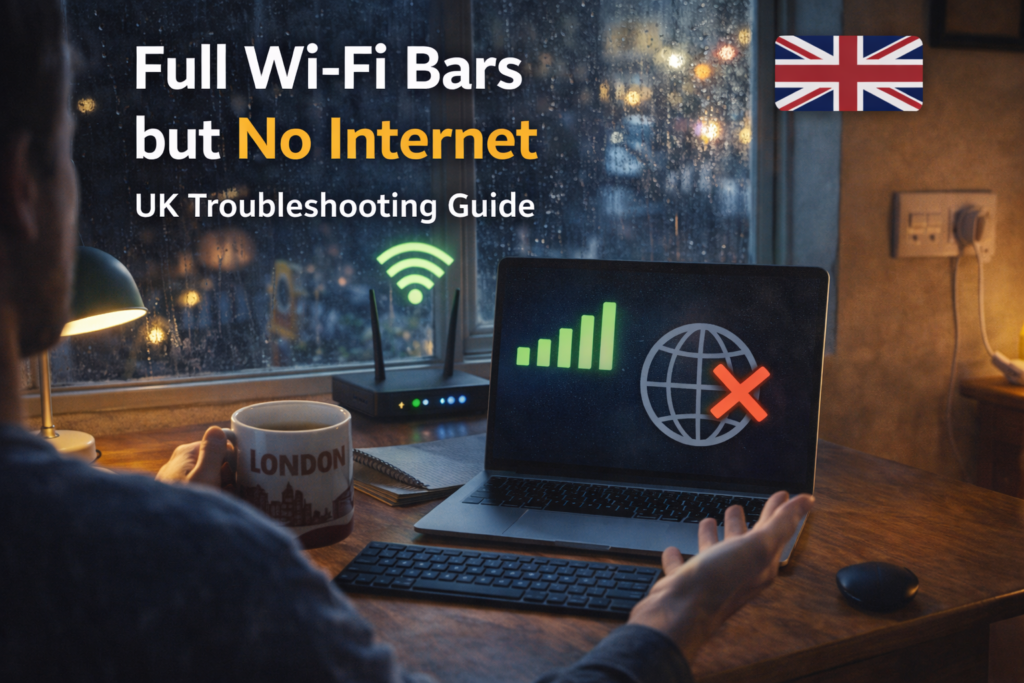
It’s one of the most frustrating internet problems: your device shows full Wi-Fi bars, everything looks connected — yet nothing loads. No websites, no apps, no streaming. If you’re dealing with full wi-fi bars but no internet, you’re not alone.
This issue affects phones, laptops, smart TVs, and tablets, especially in home networks. The good news? In most cases, the problem is easy to fix once you understand what’s actually going wrong.
In this guide, we’ll break down 7 proven reasons why you see full signal but no internet, and walk you through step-by-step solutions that actually work. This article is part of our Wi-Fi Troubleshooting Cluster, along with:
- Internet Drops at Night – Causes & How to Fix
- New Router but Same Wi-Fi Problems – What to Do
- Wi-Fi Slow on Phone but Fast on Laptop
Common Reasons
Your Router Is Connected to Wi-Fi but Not the Internet
This is the most common reason behind full wi-fi bars but no internet.
Your device connects perfectly to the router (hence full bars), but the router itself has lost connection to your ISP.
How to check:
- Look at your router lights
- If the Internet / WAN light is red, blinking, or off → that’s the issue
How to fix:
- Restart your router and modem
- Wait 2–3 minutes
- Check if the internet light turns solid
🔗 External check: Test your line using
DNS Problems Causing No Internet Access
DNS (Domain Name System) translates website names into IP addresses. When DNS fails, you get full wi-fi bars but no internet, even though the connection technically exists.
Signs of DNS issues:
- Google doesn’t load, but Wi-Fi is connected
- Apps say “No Internet”
- Only some websites work
How to fix DNS:
Change DNS to a public provider:
Google DNS
- 8.8.8.8
- 8.8.4.4
Cloudflare DNS
- 1.1.1.1
- 1.0.0.1
This alone fixes the issue for many users.
Captive Portal or Login Page Not Loaded
Public Wi-Fi networks and even some home ISPs require a login or confirmation page before internet access works.
This can cause full wi-fi bars but no internet, especially on phones.
How to fix:
- Open a browser
- Type http://neverssl.com
- See if a login page appears
Once accepted, internet usually works instantly.
IP Address Conflict on Your Network
If two devices share the same IP address, your network can break — resulting in full wi-fi bars but no internet on one or more devices.
Common causes:
- Router not assigning IPs correctly
- Too many devices connected
- Old devices waking from sleep
FIX:
- Restart the affected device
- Restart router
- Enable DHCP in router settings
VPN or Firewall Blocking Internet Access
VPN apps and aggressive firewalls often block traffic while still allowing Wi-Fi connection.
This is a hidden but very common reason for full signal with no internet.
Fix:
- Turn off VPN temporarily
- Disable firewall / security app
- Test connection again
If internet works after disabling → reconfigure or change VPN.
ISP Outage or Night-Time Congestion
Sometimes the issue isn’t your setup at all. If your ISP is experiencing an outage or congestion, you may see full wi-fi bars but no internet even though everything looks normal.
How to confirm:
- Test mobile data on same website
- Check ISP outage page
- Ask neighbors on same provider
🔗 Related internal guide:
Internet Drops at Night – Causes & How to Fix
Device-Specific Wi-Fi Problems
If only one device shows full bars but no internet, the problem is local — not your router.
Fix checklist:
- Forget the Wi-Fi network
- Reconnect from scratch
- Reset network settings
- Update the operating system
- Disable battery saver or data saver
🔗 Related guide:
Wi-Fi Slow on Phone but Fast on Laptop
Quick Step-by-Step Fix Checklist
If you’re facing full wi-fi bars but no internet, follow these steps in order. Each step rules out a common cause before moving to the next.
Restart Modem and Router Properly
Many users restart only the router, which is not enough.
Correct method:
- Turn off both modem and router
- Unplug them from power
- Wait at least 2–3 minutes
- Turn on the modem first
- Wait until all modem lights stabilise
- Turn on the router
This refreshes the ISP connection and resolves temporary line drops.
Full bars don’t guarantee browsing speed. See Strong Wi-Fi Signal but Internet Is Slow – Explained
Restart the Affected Device
If only one device shows full wi-fi bars but no internet, the issue may be cached network data.
- Restart phone, laptop, or tablet
- Avoid “sleep” or “lock” — do a full restart
This clears corrupted network sessions.
Forget and Reconnect to Wi-Fi
Old network profiles often cause silent connection failures.
How to do it:
- Go to Wi-Fi settings
- Tap “Forget Network”
- Reconnect and enter the password again
This forces the device to request a new IP address.
Disable VPN and Security Apps Temporarily
VPNs can block traffic even when Wi-Fi appears connected.
- Turn off VPN
- Disable firewall or security apps
- Test the internet
If the connection works, reconfigure or replace the VPN.
Change DNS Settings
DNS failure is a major cause of full signal with no internet.
Use one of these:
- Google DNS: 8.8.8.8 / 8.8.4.4
- Cloudflare DNS: 1.1.1.1 / 1.0.0.1
This step alone fixes many cases of full wi-fi bars but no internet.
Test With Another Device
This helps isolate the problem.
- If all devices fail → router or ISP issue
- If one device fails → device-specific issue
This saves time and avoids unnecessary router replacement.
Check our Wi-Fi Router guide for recommended models in UK homes. Use a Wi-Fi Extender to boost coverage in larger flats or multi-storey homes.
Check ISP Status
Before changing hardware, confirm your ISP is working.
- Check ISP outage page
- Test mobile data on same website
- Ask neighbours on same provider
Common Mistakes That Keep the Problem Unfixed
Many users unknowingly make mistakes that prolong the issue of full wi-fi bars but no internet.
Assuming Full Signal Means Internet
Wi-Fi signal only shows connection to the router — not to the internet itself.
This misunderstanding leads users to blame the wrong device.
Replacing the Router Too Quickly
Buying a new router won’t fix:
- ISP outages
- DNS failures
- VPN blocking
- IP conflicts
Always diagnose before upgrading hardware.
Ignoring DNS Completely
Most people never touch DNS settings, yet DNS is responsible for loading websites.
Bad DNS = no internet, even with full Wi-Fi signal.
Using Multiple VPNs or Security Apps
Running more than one VPN or firewall app often blocks traffic silently.
This creates a perfect case of full wi-fi bars but no internet.
Never Updating Router Firmware
Outdated firmware can cause:
- DHCP failures
- DNS bugs
- Random disconnections
Check for firmware updates at least every few months.
Not Testing Multiple Devices
Testing only one device gives incomplete information.
Always check at least:
- One phone
- One laptop
This instantly tells you where the problem lives.
FAQ – Full Wi-Fi Bars but No Internet
Q1. Why does Wi-Fi show full bars but no internet?
Because your device is connected to the router, but the router isn’t connected to the internet.
Q2. Does resetting the router fix this?
Yes, in many cases — especially after ISP drops or IP conflicts.
Q3. Can DNS really stop the internet?
Absolutely. Bad DNS is one of the most common causes.
Q4. Is this a router or ISP problem?
It can be either. Testing with multiple devices helps identify which.
Final Thoughts
Seeing full wi-fi bars but no internet is frustrating, but it’s rarely serious. In most cases, the issue comes down to DNS, ISP connection, VPN interference, or simple router hiccups.
By following the fixes in this guide, you can restore your internet quickly — without replacing hardware or calling support unnecessarily.
👉 For more fixes, read:
- Internet Drops at Night – Causes & How to Fix
- New Router but Same Wi-Fi Problems – What to Do
- Wi-Fi Works in One Room Only – Causes & Fixes
Enjoyed our Wi-Fi guides? Share your experience on Trustpilot — we’d love to hear from you!
Pingback: 5 Reasons Strong Wi-Fi Signal but Internet Is Slow
Pingback: 8 Shocking: Speed Test Fast but Browsing Slow Explained