
Soundbar Not Connecting to TV (Bluetooth & HDMI Fixes for UK Homes)
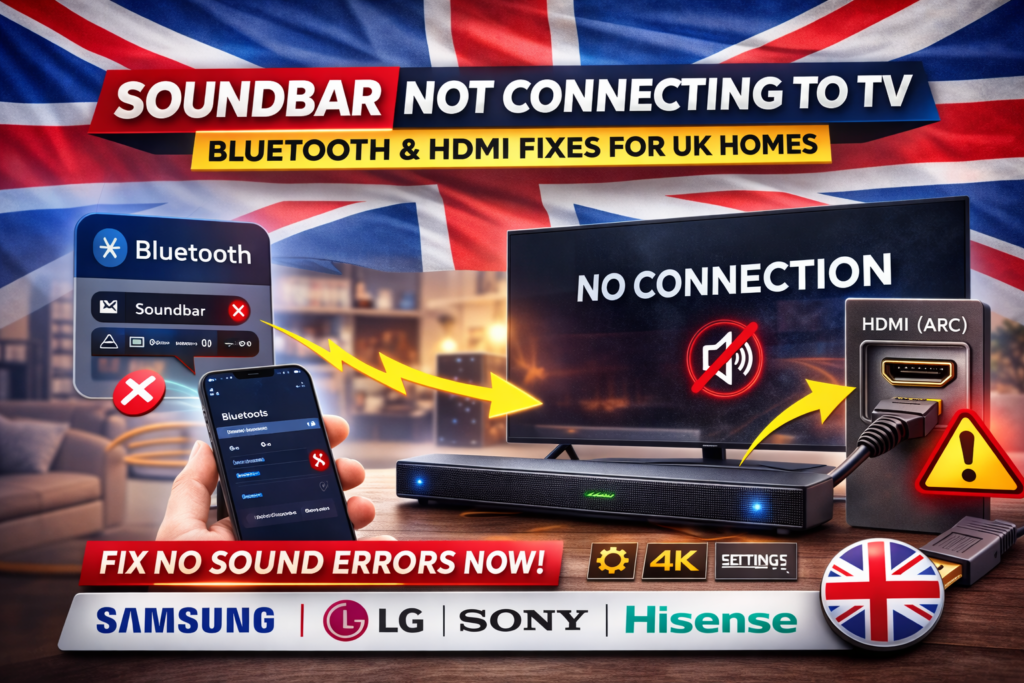
If your soundbar not connecting to TV, you’re not alone. This is one of the most common TV-related problems in UK households — especially with modern Smart TVs from brands like Samsung, LG, Sony, and Hisense.
The issue usually falls into one of two categories:
- 🔌 HDMI ARC / eARC problems
- 📶 Bluetooth pairing failures
Sometimes it’s a simple settings mistake. Other times, it’s a cable, firmware, or device conflict issue.
In this complete UK troubleshooting guide, we’ll cover:
- Why your soundbar not connecting to TV
- HDMI ARC vs Bluetooth differences
- Step-by-step fixes
- Brand-specific settings
- Audio delay problems
- When to upgrade equipment
- Where to place images for best SEO
For a complete overview of UK TV-related problems, also see our main guide:
👉 TV & Streaming Problems in UK – Complete Troubleshooting Guide
First: How Is Your Soundbar Connected?
Before fixing anything, identify your connection type:
- HDMI ARC / eARC (Best option)
- Optical cable
- Bluetooth (Wireless)
HDMI ARC is recommended for UK homes because:
- It supports Dolby Digital / Dolby Atmos
- One remote controls everything
- More stable than Bluetooth
If you’re also dealing with HDMI ARC issues, read:
👉 HDMI ARC Not Working on Smart TV (UK Brands Explained)
Problem 1: HDMI ARC Not Detecting Soundbar
This is the most common issue.
Symptoms:
- TV says “No device detected”
- Sound still coming from TV speakers
- ARC option greyed out
- No sound at all
Step-by-Step Fix – Soundbar not connecting to TV
1️⃣ Use the Correct HDMI Port
On most TVs, only ONE HDMI port supports ARC.
Look for:
- HDMI 2 (ARC)
- HDMI 3 (eARC)
Plugging into HDMI 1 will not work.

2️⃣ Enable HDMI-CEC (Very Important)
ARC depends on HDMI-CEC.
Each brand uses a different name:
- Samsung → Anynet+
- LG → SIMPLINK
- Sony → Bravia Sync
- Hisense → CEC
Enable it in settings before testing ARC again.
3️⃣ Restart the HDMI Handshake
Do this reset:
- Turn off TV
- Unplug TV + soundbar
- Disconnect HDMI cable
- Wait 5 minutes
- Reconnect only ARC cable
- Power on soundbar first
- Then TV
This solves many UK cases.
Problem 2: HDMI ARC Connected but No Sound
If the connection exists but no sound plays:
Fix Audio Output Settings
On your TV:
Settings → Sound → Output → HDMI ARC / Audio System
Then:
Digital Output Audio Format → Auto or PCM
If you hear distortion:
Switch to PCM.
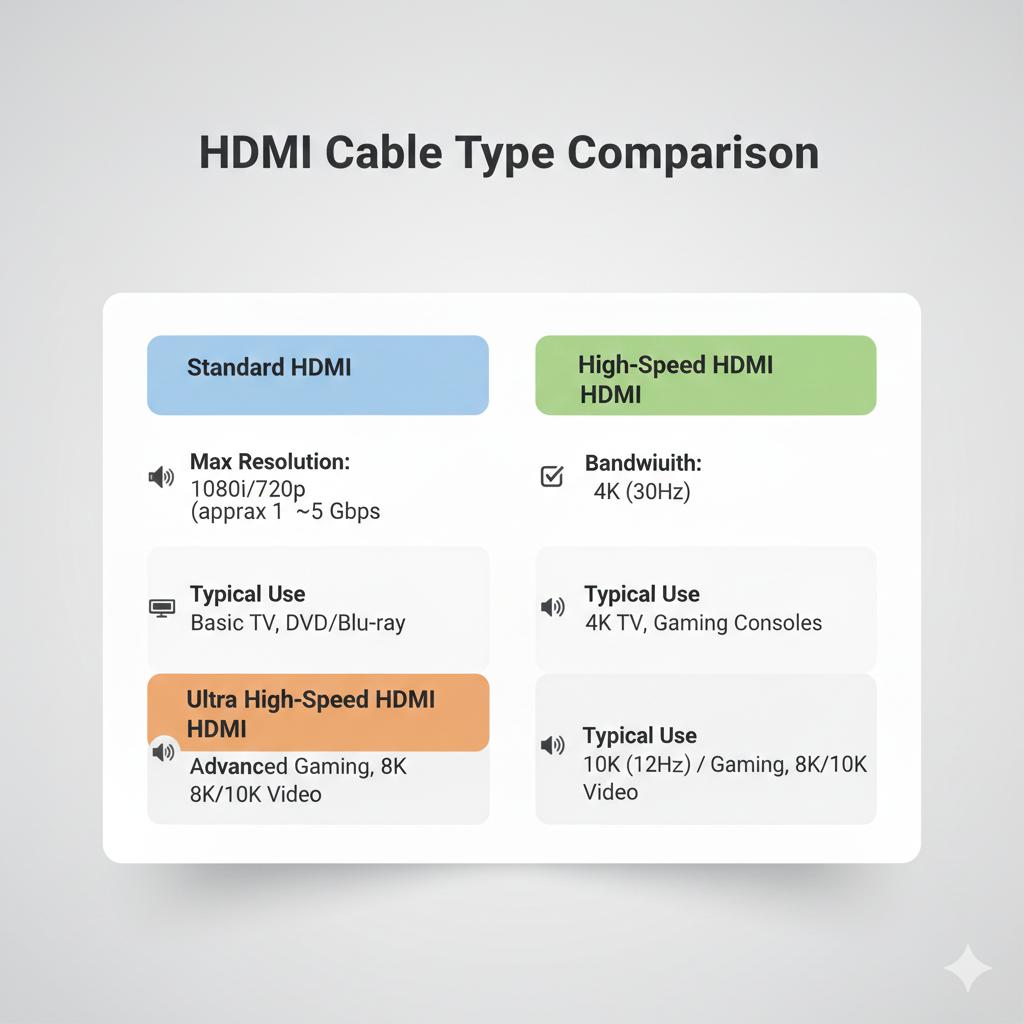
Check HDMI Cable Quality
Old HDMI cables may not support ARC or eARC.
Use:
- High-Speed HDMI (minimum)
- Ultra High-Speed HDMI (for eARC)
Official cable info:
https://www.hdmi.org/spec21sub/ultrahighspeedcable
Cheap cables cause:
- Random sound dropouts
- ARC disconnecting
- Audio delay
Problem 3: Bluetooth Soundbar Not Pairing
Bluetooth is convenient but less stable.
Common Symptoms:
- TV cannot find soundbar
- Soundbar appears but won’t connect
- Audio cuts out
- Delay (lip sync problem)
Fix Bluetooth Pairing Issues
1️⃣ Reset Bluetooth on Soundbar
Put soundbar in pairing mode manually.
Check manufacturer instructions.
2️⃣ Forget Device on TV
TV Settings → Bluetooth → Forget device
Then reconnect.
3️⃣ Move Devices Closer
Bluetooth range is limited.
Interference from WiFi routers, walls, or microwaves affects signal.
If WiFi is also weak, read:
👉 WiFi Signal Weak Near TV or Upstairs (UK Home Fixes)
When NOT to Use Bluetooth
Avoid Bluetooth if:
- Watching 4K movies
- Using Dolby Atmos
- Playing video games
Bluetooth introduces delay.
HDMI ARC is always better.
Problem 4: Soundbar Connects but Audio Is Delayed
Very common with streaming apps like:
- Netflix
- BBC iPlayer
- Prime Video
Delay happens because:
- TV processes video faster than audio
- Bluetooth adds latency
- Dolby passthrough delay
Fix Audio Delay
TV Settings → Sound → Audio Delay / Lip Sync
Adjust until voices match movement.
Better fix:
Switch Bluetooth → HDMI ARC.
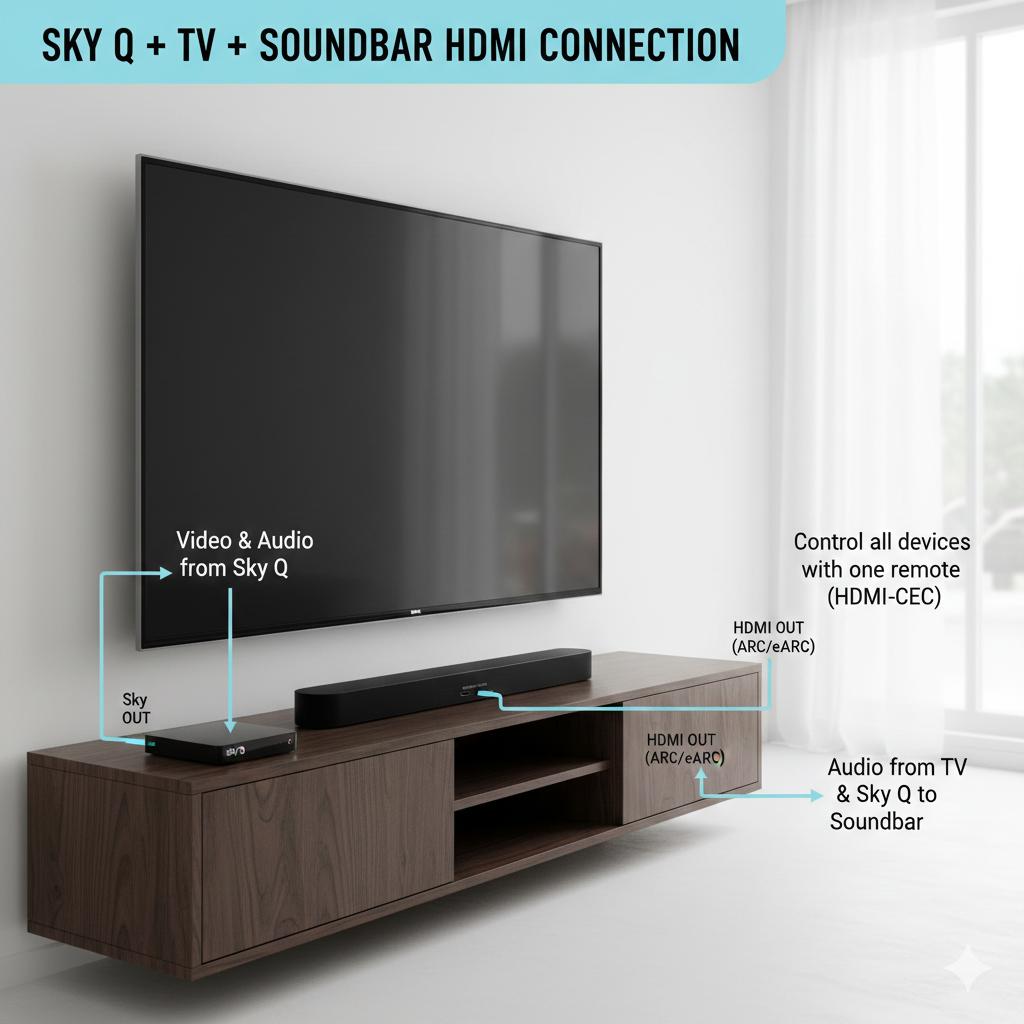
Problem 5: Soundbar Works with Netflix But Not Sky Q
This is common in UK homes with:
- Sky Q
- Virgin Media
- Fire Stick
- PlayStation
These devices interfere with HDMI-CEC.
Fix External Device Conflicts
Disconnect all HDMI devices except soundbar.
If ARC works:
Reconnect devices one by one.
Disable HDMI-CEC on non-essential devices.
Problem 6: Soundbar Turns Off Randomly
Causes:
- Auto power sync conflict
- HDMI handshake reset
- Firmware outdated
Fix:
- Disable Auto Power Sync
- Update soundbar firmware
- Use new HDMI cable
Check manufacturer website for updates.
Problem 7: Optical Cable Works but HDMI Doesn’t
If optical works but ARC doesn’t:
Likely causes:
- HDMI-CEC disabled
- Wrong port
- Faulty cable
- TV firmware issue
Optical is stable but:
- No Dolby Atmos
- No remote sync
Use optical only as temporary solution.
Recommended Settings for UK Homes
For best performance:
✔ Use HDMI ARC
✔ Enable HDMI-CEC
✔ Set Audio Format to Auto
✔ Use High-Speed HDMI cable
✔ Keep firmware updated
If streaming apps buffer too, read:
👉 Smart TV Not Connecting to WiFi (UK Troubleshooting Guide)
When to Replace Your Soundbar
Consider upgrade if:
- Older than 6–7 years
- No firmware updates
- HDMI ARC keeps failing
- No eARC support
Modern soundbars handle handshake better.
When to Reset Your TV or Soundbar (And When Not To)
If your soundbar not connecting to TV, no matter how many cables you check or settings you change, your soundbar still refuses to connect. That’s when people immediately jump to a factory reset. But resetting should be your last step, not your first.
🔄 When a Reset Is a Good Idea
Consider resetting your TV or soundbar if:
- You’ve updated firmware but the issue continues
- HDMI ARC worked before and suddenly stopped
- Bluetooth devices connect but no sound plays
- Settings seem stuck or unresponsive
- You recently changed audio format settings
A factory reset can clear hidden software glitches, corrupted HDMI handshakes, or Bluetooth pairing conflicts.
⚠️ When NOT to Reset
Avoid resetting if:
- The issue is clearly a loose HDMI cable
- Your HDMI cable isn’t ARC-compatible
- Your TV is connected to the wrong HDMI port
- The problem started after moving furniture (likely cable related)
- Your WiFi is unstable (for smart soundbars)
Resetting will erase:
- WiFi settings
- Bluetooth pairings
- Custom audio settings
- Installed apps (on smart TVs)
So only reset once you’ve tried the earlier troubleshooting steps.
How to Properly Reset (UK Brand Examples)
Samsung TV:
Settings → General → Reset
LG TV:
Settings → General → System → Reset to Initial Settings
Sony TV:
Settings → Device Preferences → Reset
Soundbars (varies by brand):
Usually holding the Power + Volume Down button for 5–10 seconds.
Always check the official support page for your brand:
- Samsung Support UK – https://www.samsung.com/uk/support/
- LG Support UK – https://www.lg.com/uk/support
- Sony Support UK – https://www.sony.co.uk/electronics/support
Pro Tip Before Resetting
Instead of a full factory reset, try a power cycle reset first:
- Turn off TV and soundbar
- Unplug both from the wall
- Wait 5 minutes
- Plug back in and reconnect
This simple step fixes HDMI handshake issues in many UK households.
Advanced Troubleshooting – Soundbar not Connecting to TV
If nothing works:
Factory Reset TV
Settings → Support → Reset
Warning:
You will lose WiFi and app logins.
Check Broadband Speed
Sometimes “no sound” is actually:
Streaming buffering.
Test speed:
https://www.speedtest.net
Minimum recommended speeds:
- HD → 5 Mbps
- 4K → 25 Mbps
Frequently Asked Questions
Why is my soundbar not connecting to my Samsung TV?
Usually:
- Anynet+ disabled
- Wrong HDMI port
- HDMI cable not compatible
Is HDMI better than Bluetooth for soundbars?
Yes.
HDMI ARC provides:
- Better sound quality
- Less delay
- Stable connection
Why does Bluetooth audio cut out?
Interference from:
- WiFi router
- Walls
- Other wireless devices
Should I use optical instead?
Only if HDMI ARC refuses to work.
HDMI is superior.
Final Thoughts
If your soundbar not connecting to TV, the problem is usually:
✔ HDMI-CEC disabled
✔ Wrong HDMI port
✔ Poor HDMI cable
✔ Bluetooth interference
✔ Device conflict (Sky Q / Fire Stick)
In most UK homes, it’s a settings issue — not a hardware failure.
Start simple:
- Check HDMI port
- Enable CEC
- Restart devices
- Replace cable
- Avoid Bluetooth if possible
And if you want to fix ALL common UK TV issues in one place, visit:
👉 TV & Streaming Problems in UK – Complete Troubleshooting Guide
This connects you to:
- HDMI ARC fixes
- WiFi problems
- Netflix buffering
- Smart TV connection issues
- Audio delay solutions
Enjoyed our TV & Streaming Problems guides? Share your experience on Trustpilot — we’d love to hear from you!